

Prerequisites
Before you begin, ensure you have:- A GoTo Connect account with admin or super admin access
- Access to the GoTo Connect PBX Administration portal
- A phone number in GoTo Connect that will receive customer calls
Step 1: Sign Up for IrisAgent
You can sign up for IrisAgent in one of two ways: by connecting your ticketing platform or using public website as knowledge source.Step 2: Create a Dial Plan in GoTo Connect
Next, configure GoTo Connect to route incoming calls to your IrisAgent Voice AI.Access the Dial Plan Editor
- Sign in to the GoTo Connect Admin Portal
- Navigate to Phone System → Dial Plans
- Click + Add Dial Plan to create a new dial plan
Configure the Dial Plan
- Give your dial plan a descriptive name (e.g., “IrisAgent Voice AI”)
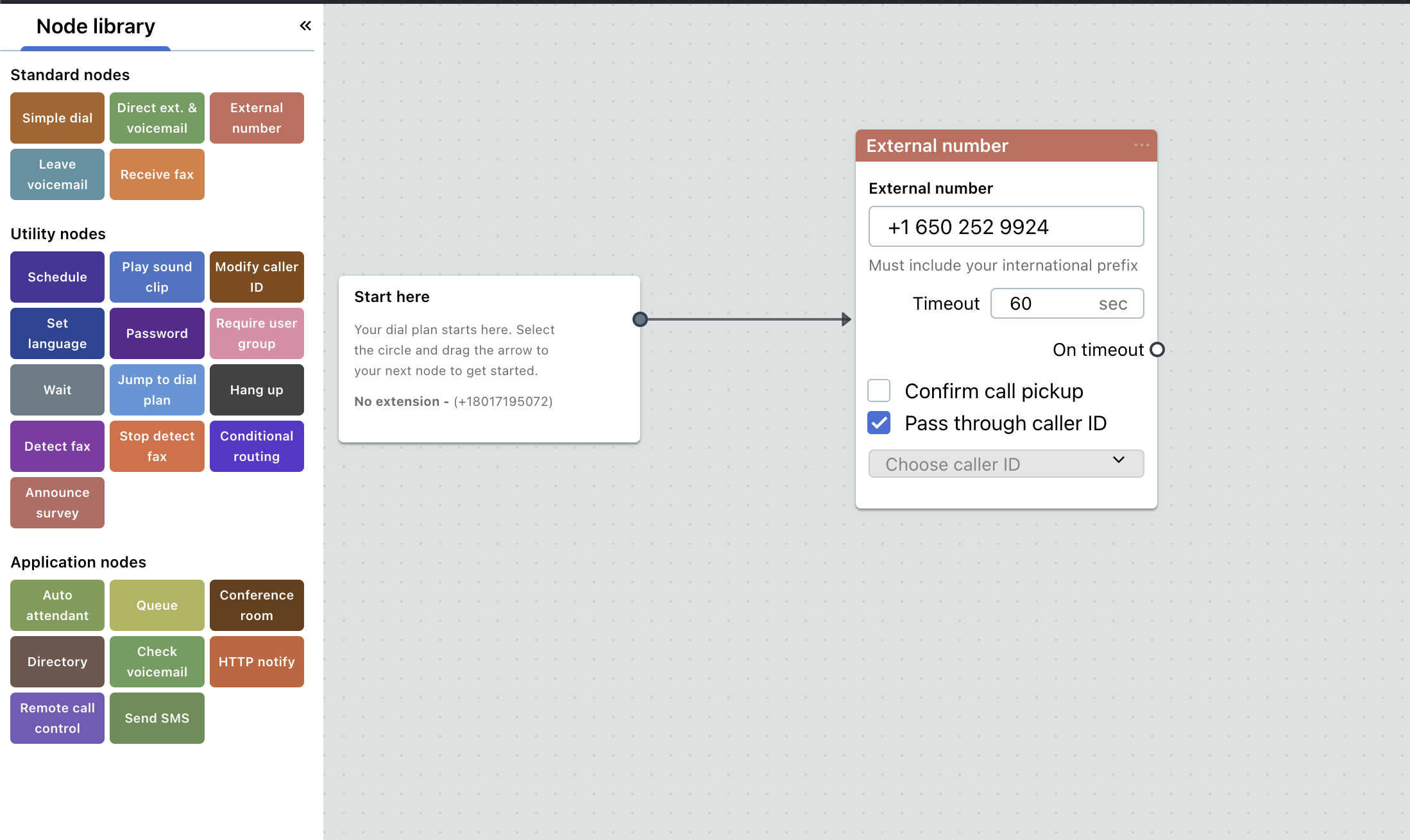
- In the dial plan editor, add a node to route calls to an external number
-
Enter the external phone number provided by the IrisAgent team
-
Configure any additional routing options as needed:
- Set business hours if you want AI to handle calls only during specific times
- Add fallback options for when the external number is unavailable
- Click Save to save your dial plan
Step 3: Test Your Integration
After completing the setup, verify that calls are routing correctly to IrisAgent Voice AI.Make a Test Call
- Call the phone number you configured from an external phone (not a GoTo Connect line)
- You should hear the IrisAgent Voice AI greeting
- Test a few common customer queries to ensure responses are working as expected