

Revise an answer
-
Find the answer. Ask the chatbot a test question (for example, “What is AutoKB?”), or pick a real customer conversation.
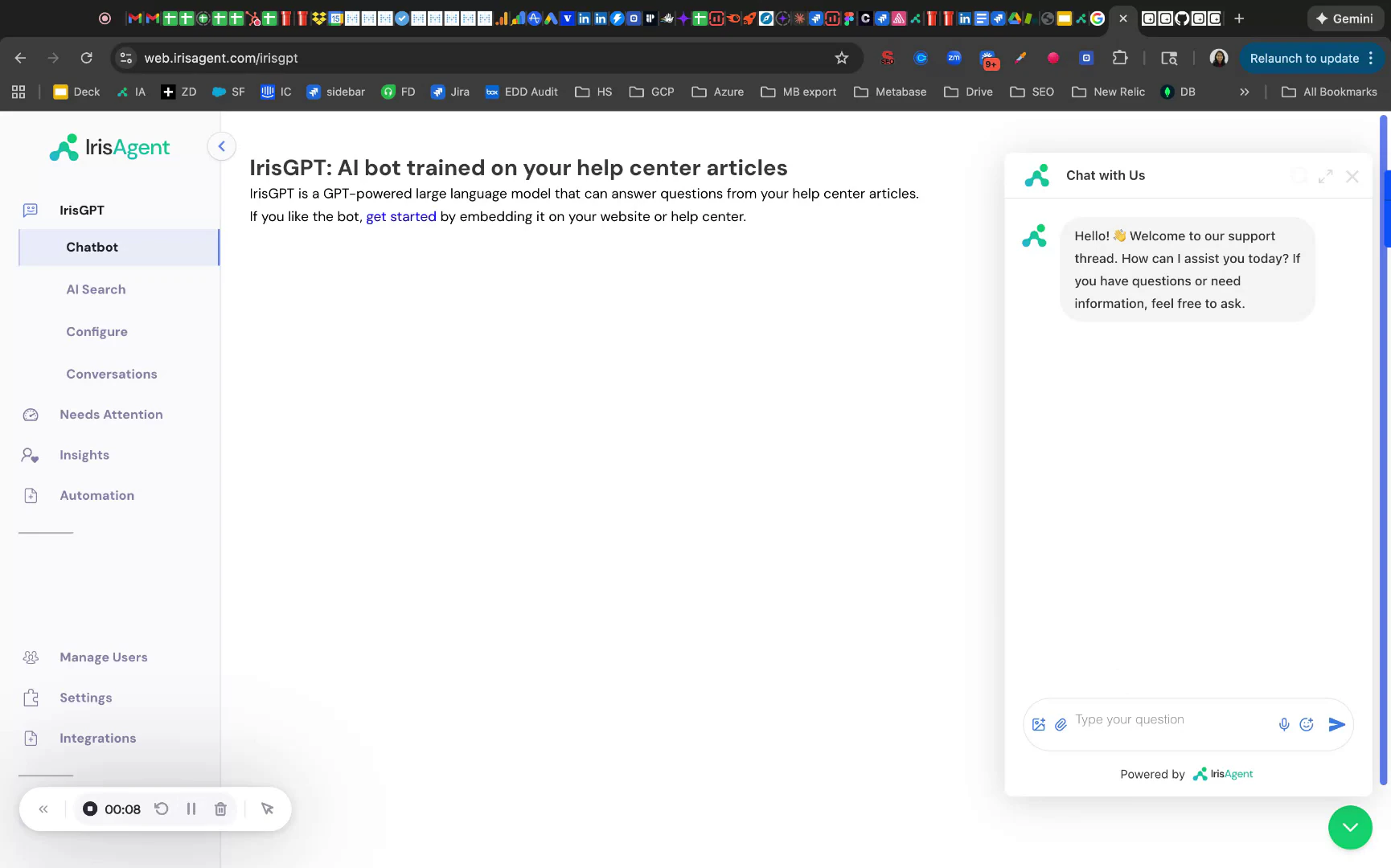
-
Open the conversation. In the dashboard, go to Activity → Conversations and click the conversation.
- Click Revise on the AI answer. This opens a new procedure with the question filled in.
-
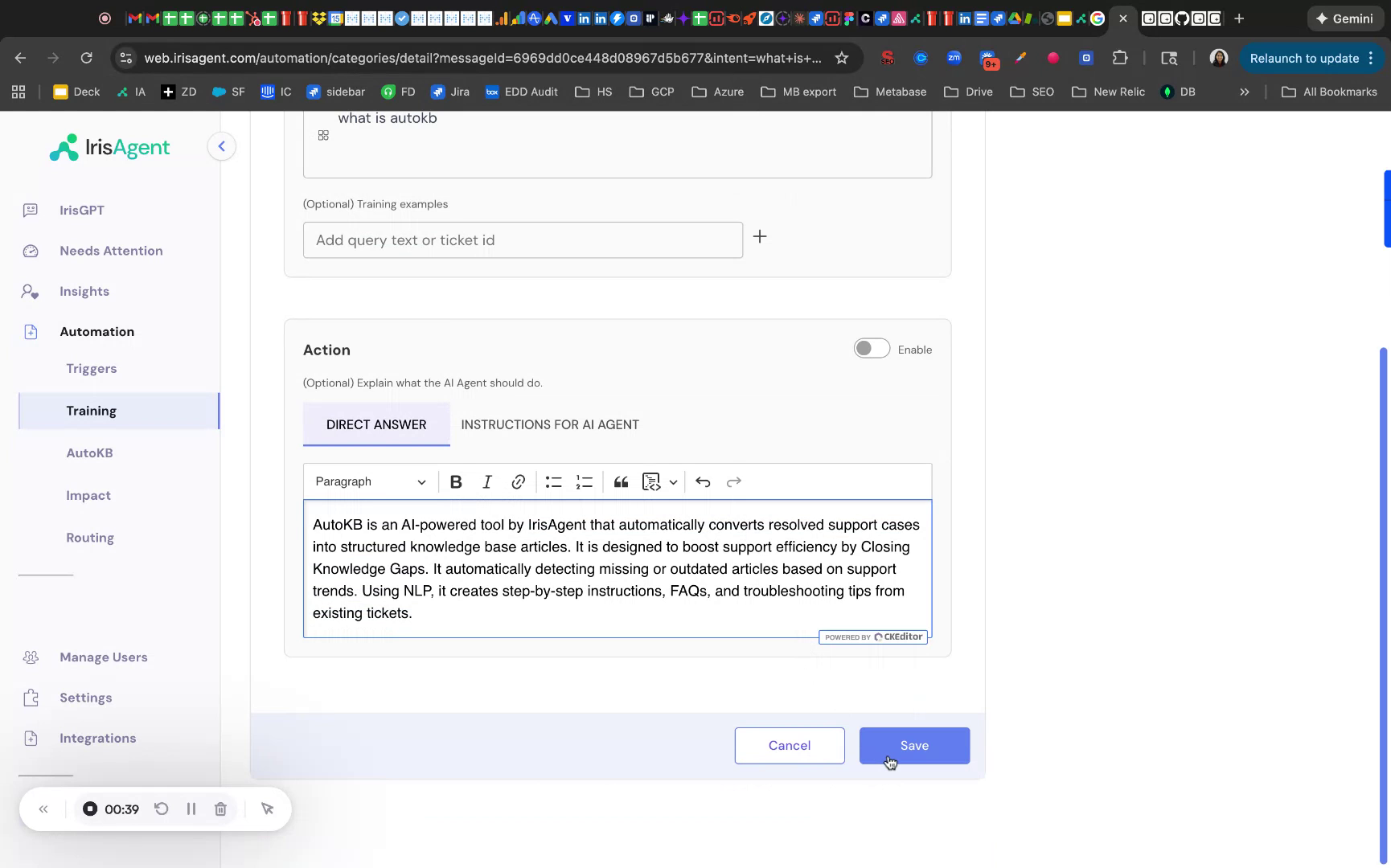
Write the new answer. Choose a tab:
- Instructions for AI Agent: guidelines on how to answer (tone, length, structure, or context to use). Best when answers can vary.
- Direct Answer: the exact text the chatbot should return. Best for facts and wording that must not change.
- Optional: add training examples. Enter other phrasings of the question or ticket IDs so the AI matches variations.
- Click Save.
- Test it. Ask the chatbot the same question again and confirm it uses your revision.
Manage revisions
Go to Automate → Procedures to view, edit, or delete any revision. Deleting a revision restores the AI’s default behavior.Tips
- Keep answers short and direct.
- Link to help center articles where useful.
- Match your brand voice.
- Add training examples for common rephrasings.
FAQ
How quickly do revisions take effect?
How quickly do revisions take effect?
Immediately after you click Save.
Do revisions apply to all channels?
Do revisions apply to all channels?
Yes, they apply to IrisGPT on every deployed channel (website chatbot, help center, and so on).