

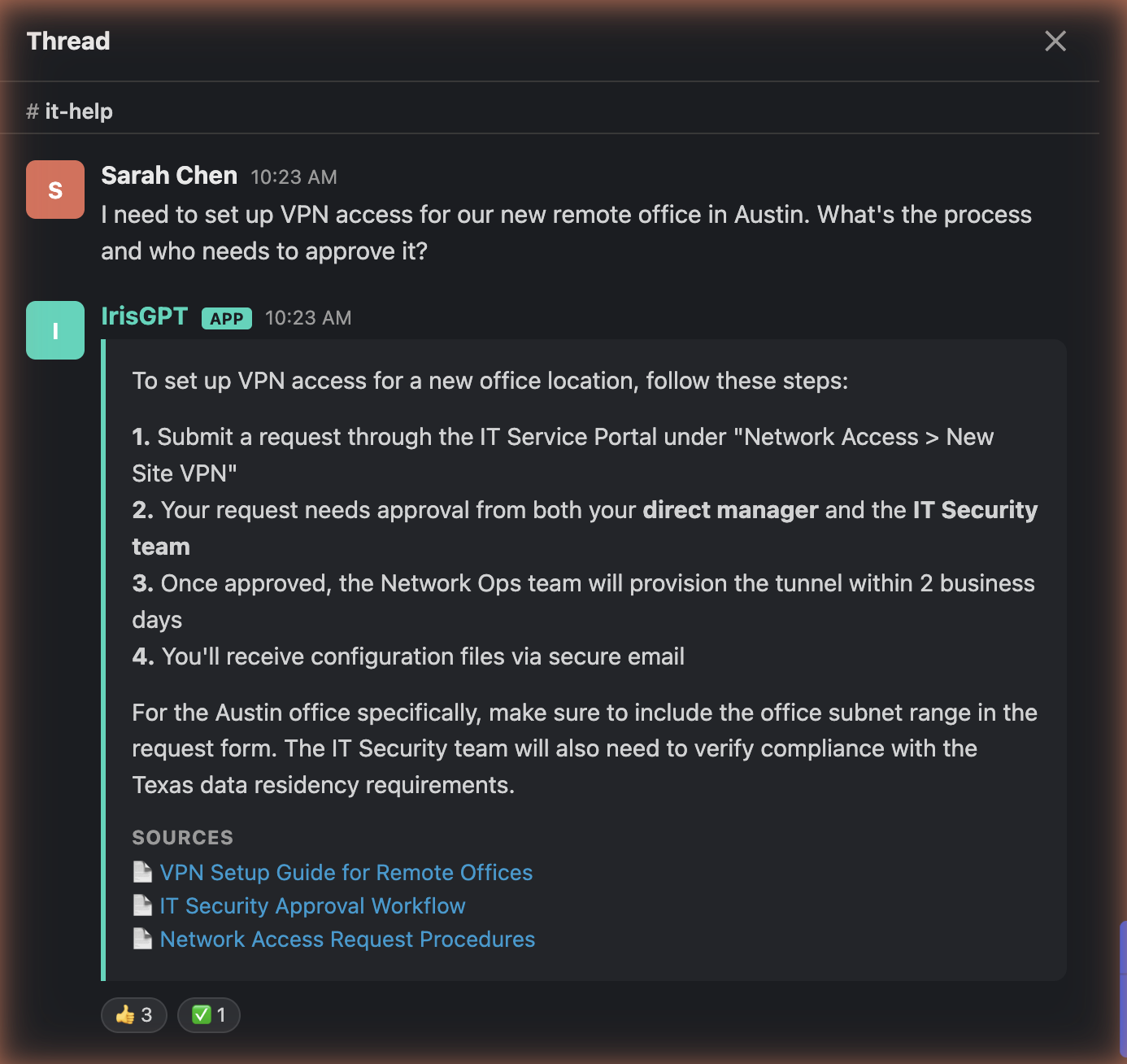
Set up
Step 1: Install IrisGPT
In IrisPortal, go to Deploy → Chat channels, click Configure on the Slack card, then click Add to Slack. Approve the app when Slack asks. Your IrisAgent contact handles the rest of the app configuration.The bot may appear as IrisGPT or IrisGPT Slackbot. Both are the same app.
Step 2: Choose a mode
Agree on a mode with your IrisAgent contact:- Channel auto-reply: IrisGPT answers every message in channels it’s added to. Best for dedicated help channels.
- Mention: IrisGPT answers only when mentioned with
@IrisGPT. Best for general channels.
Step 3: Add IrisGPT to channels
The bot must be in a channel to respond there.- Open the channel and click its name to open Channel Details.
- Go to Integrations, click Add Apps, and select IrisGPT.
Use IrisGPT
-
/askIrisGpt: ask privately. Only you see the reply.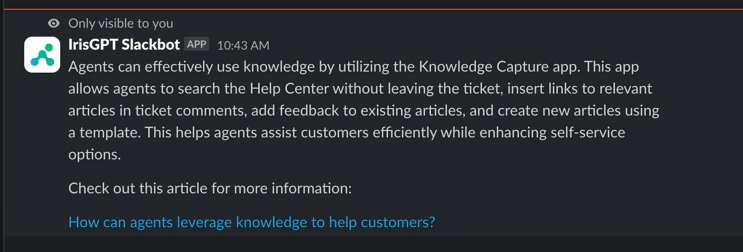
-
@IrisGPT: mention the bot in a channel it’s in. It replies in a public thread.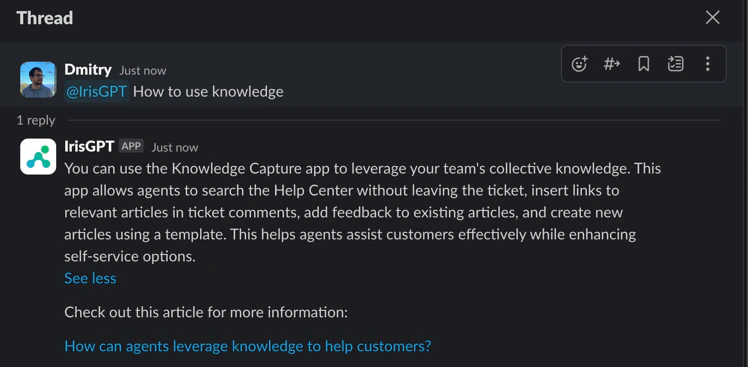
- App Home: open the IrisGPT app to see a welcome message with a link to IrisAgent resources.
Proactive notifications
IrisGPT can post updates to a Slack channel:- New & trending issue categories: newly emerging or spiking issue categories
- New AutoKB articles: new auto-generated knowledge base articles
- Weekly AI performance digest
- Go to Deploy → Chat channels and click Configure on the Slack card.
- Turn on Enable Slack notifications.
- Choose the Channel to post in.
- Select the updates you want, then save.
The IrisGPT bot must be a member of the channel. If the channel isn’t listed or posts don’t arrive, invite @IrisGPT to it and try again.