

Prerequisites
- Your ticketing system is connected. See Connect your helpdesk.
- IrisAgent has ingested enough tickets and knowledge base content to tag tickets and generate answers.
- Access to the IrisAgent dashboard. Turning on deflection for all tickets is admin-only.
Actions
To add AI insights as a private note on every ticket without a trigger, see Workflows.
Conditions
Create a trigger
- Go to Automate → Case Triggers on the IrisAgent dashboard and click Create New Trigger.
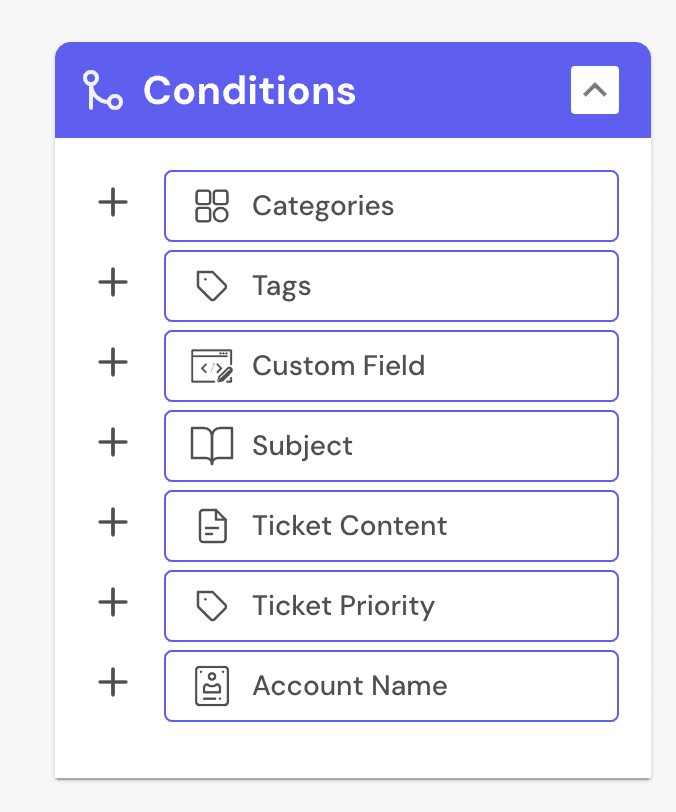
- Click Add conditions and pick conditions from the Conditions panel.
- Add actions from the Actions panel.
- Name the trigger with the pencil icon.
- Click Add New Trigger. It runs on new tickets right away.
Auto-respond with AI answers
Auto-responding (deflection) replies to tickets with IrisAgent’s AI answer, built from your knowledge base and past tickets.On specific tickets (recommended)
- Go to Automate → Case Triggers and click Create New Trigger.
- Add conditions, such as a tag or keywords.
- Add the Auto-respond to customer action and put
{{irisgpt.case.answer}}in the text box. You can add text before or after it. - Name the trigger and click Add New Trigger.
On all tickets
In Automate → Case Triggers, turn on the Case Deflection toggle. Turn it off the same way.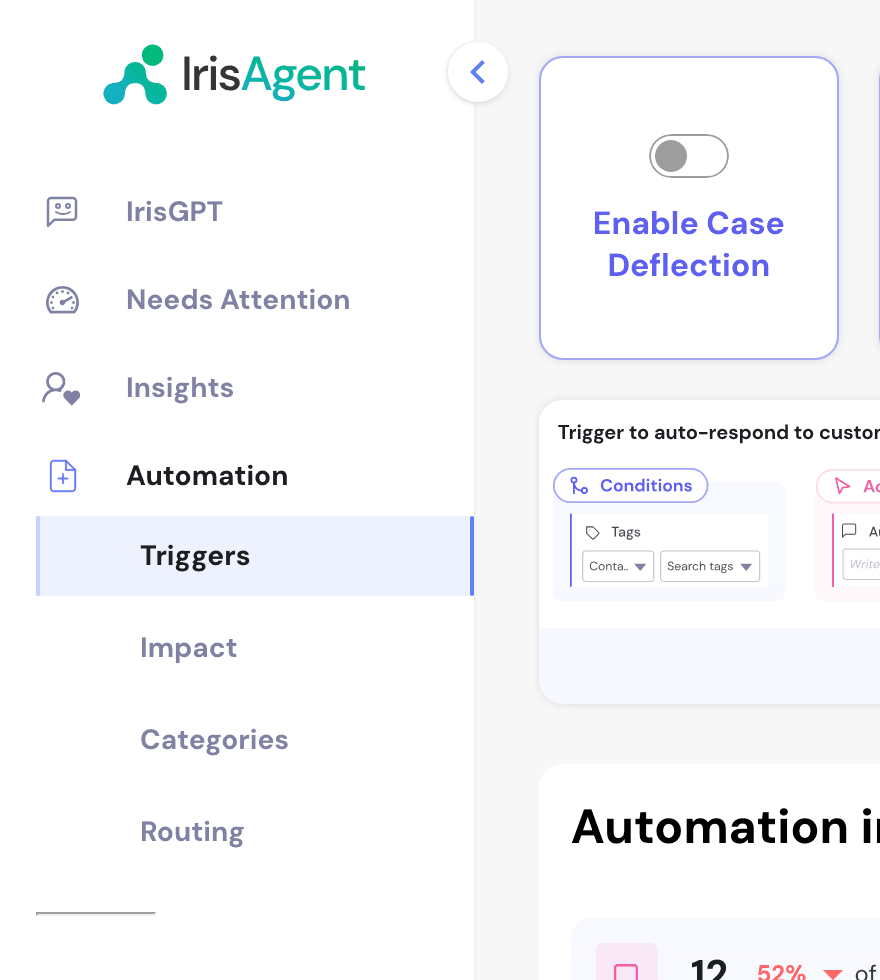
Example uses
- Known issues: send the AI answer, or post it as a private note for review.
- Routing: send
billingtopics to Finance, or “cancel my subscription” to retention. - Auto-tagging: tag
refundoroutagetickets for consistent reporting. - VIP handling: use an API condition on customer segment to route enterprise tickets.
- Entitlement checks: use an API condition on subscription status to auto-respond or route to sales.
Related pages
- Workflows: drag-and-drop trigger builder, procedures and the AI insights private note.
- Custom APIs: set up APIs for API conditions.
- Outlook: how triggers work for email.